RacketTap Club · for clubs

A scoreboard on every court.

RacketTap Club turns an iPad at the court into a big, clear scoreboard. Players keep score with a button in their hand, the score is read out loud after every point, and friends follow the match live on their phones.

Built for padel, tennis, badminton and pickleball.
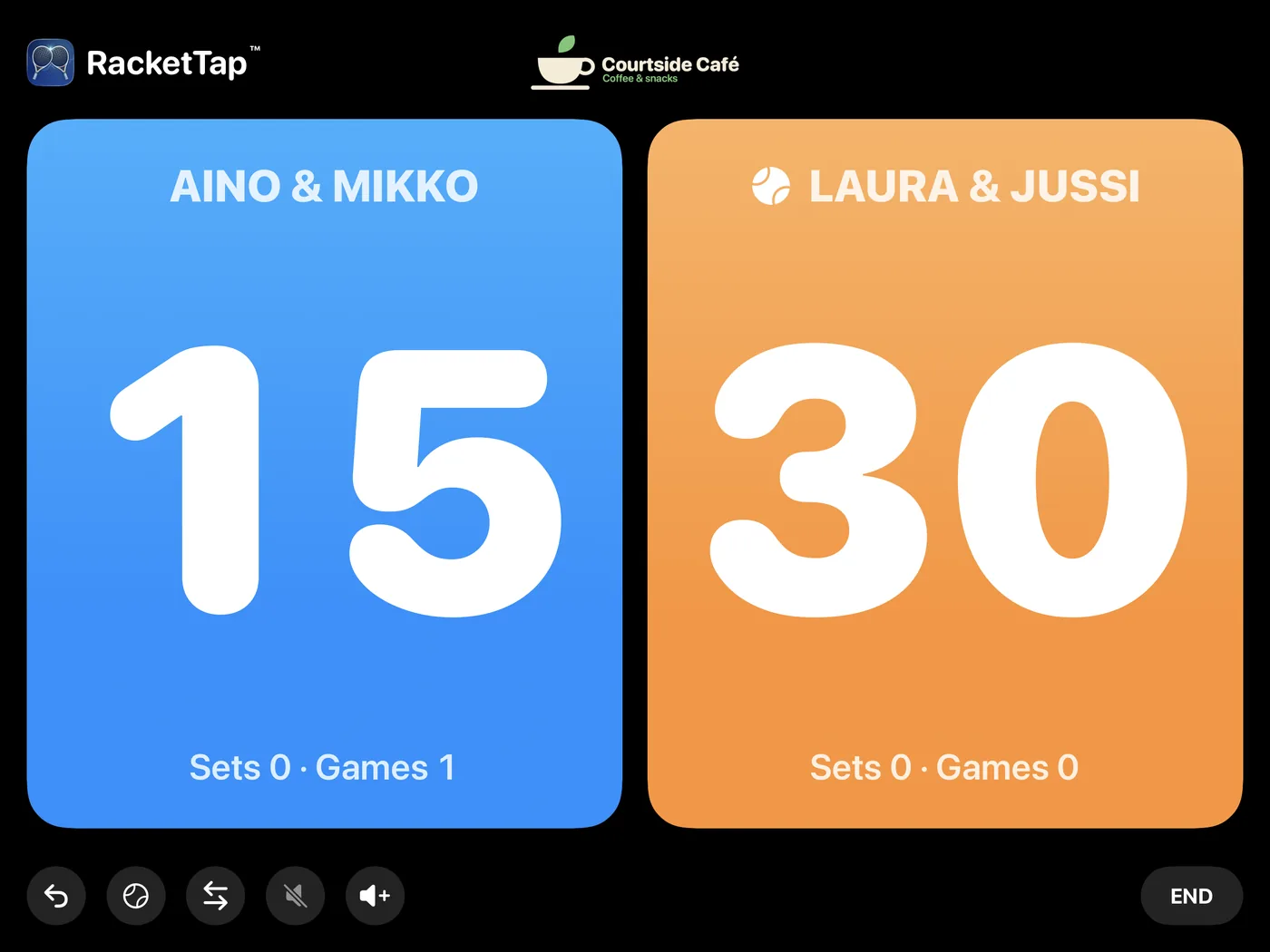
The court iPad during a padel match on Court 1: Aino and Mikko on blue have 15, Laura and Jussi on orange have 30.

What RacketTap Club does

Setup

Up and running in minutes

No technician, no cabling, no server. If you can set up an iPad, you can set up a court.

  1. 1

    Put an iPad at the court

    On a stand or a wall mount at eye level, plugged in to power.

  2. 2

    Install RacketTap Club

    Open the install link we send you, on the court's iPad.

  3. 3

    Send us the code on screen

    The app shows this iPad's device code. Tap Copy and email it to us.

  4. 4

    Paste the unlock code

    We reply with an unlock code. Paste it in and tap Verify.

  5. 5

    Name the court, pick the sport

    Choose a staff PIN, type the court name, pick the sport, then tap Start Club Mode.

  6. 6

    Hand the players the button. Done.

    Pair it once in the iPad's Settings → Bluetooth. The players take it from there.

One unlock code per iPad. The next court is the same six steps.

The exact steps, screen by screen (for staff)

First setup

  1. Open RacketTap Club. Under Device code, tap Copy and send the code to us by email.
  2. When our unlock code arrives, put it in the Paste unlock code field and tap Verify.
  3. Under Admin PIN, type a PIN of 4 to 6 digits in New PIN and Repeat PIN, then tap Save PIN. Staff use this PIN to reach the court's settings.
  4. Type the Court name (for example “Court 1”) and choose the Sport. Open Match rules if you want a different format.
  5. Tap Start Club Mode. From now on the iPad opens straight to the court screen.

Getting back to the settings

Press and hold the top-left corner of the court screen, over the RacketTap logo, for three seconds, then enter the PIN. There you can change the court name, the voice, the default sport and match type, and the sponsors, and see the match log.

The Bluetooth button

Pair it once in the iPad's Settings → Bluetooth. Keep the iPad's volume a few steps below maximum: most buttons work by sending a volume press.

Sound (optional)

The iPad's own speaker reads the score. For a louder hall, connect a speaker in Settings → Bluetooth the same way. The voice is switched on or off with Announce the score in the court's settings.

At the court

What players see

A screen made to be read from the far baseline.
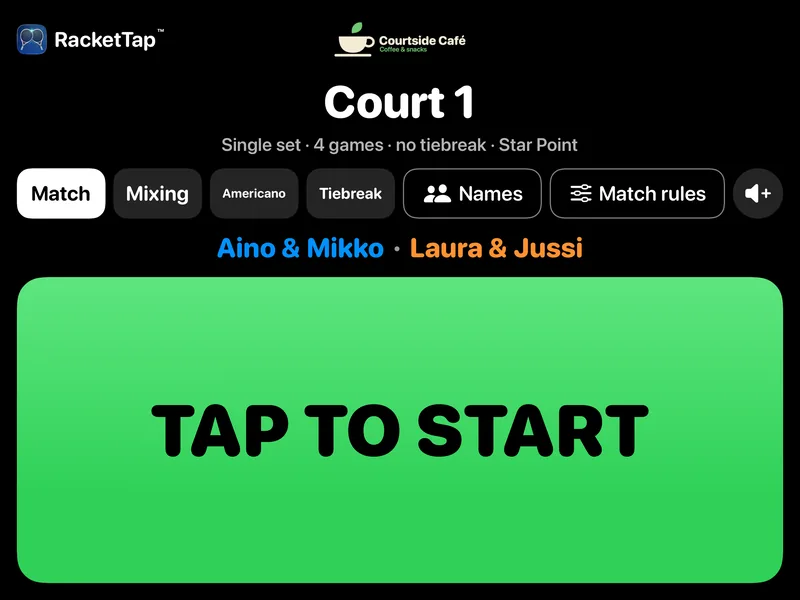
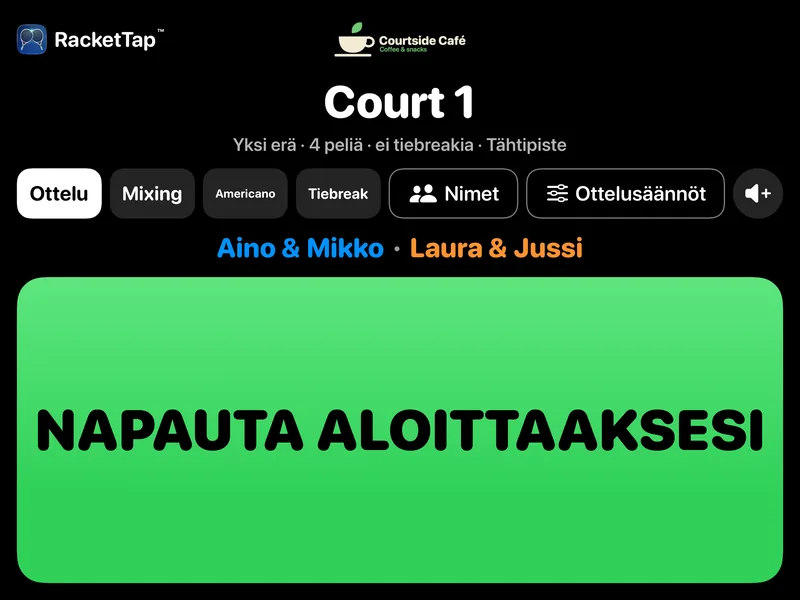
The court's start screen: Court 1, the match options, and a large green Tap to start button.
Tap to startPlayers choose a match, Mixing, Americano or a tiebreak, add their names if they like, and start with a tap or a button press.
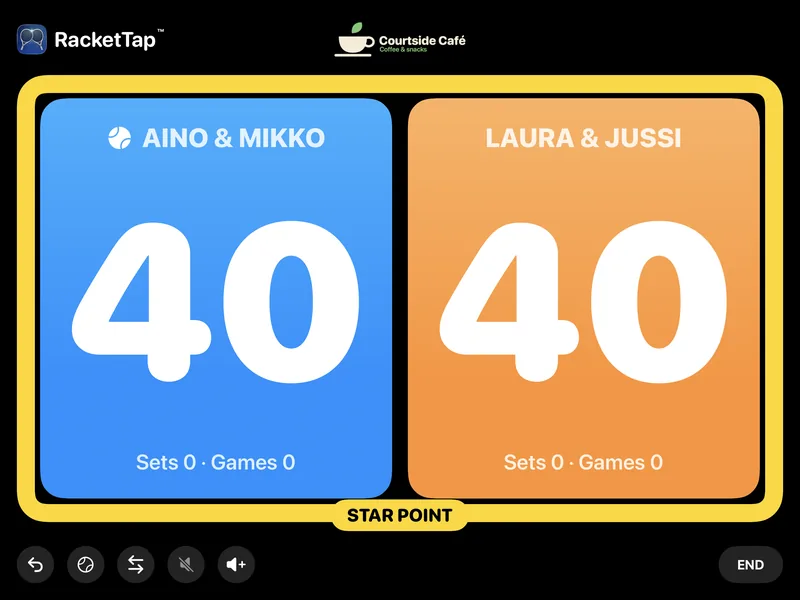
The scoreboard at 40–40 with the Star Point banner highlighted in yellow.
The rules, handledStar Point, tie-breaks, sets and games are kept for the players, in big numbers.
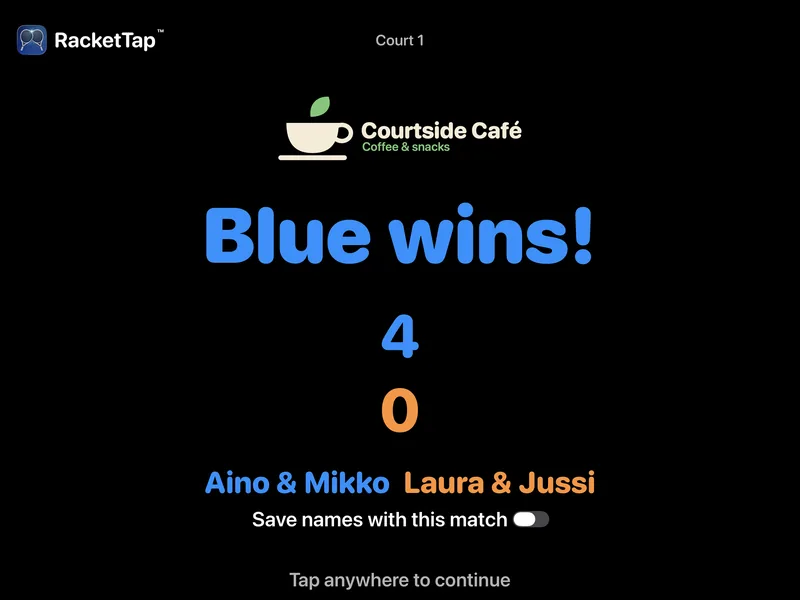
The result screen: Blue wins 4–0, with the sponsor logo above.
A clear resultThe final score stays on screen until the next players tap to continue.

Live on their phonesPlayers tap Share online and the screen shows a QR code. Friends scan it and follow the score in their browser.
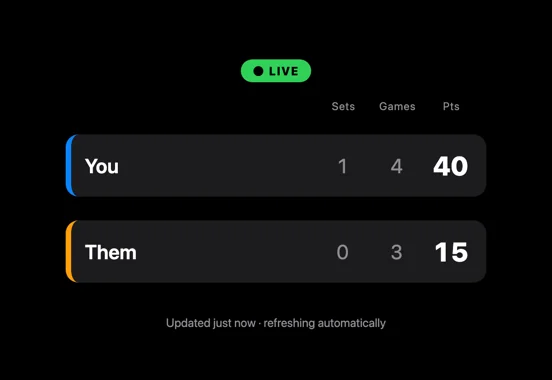
The live score page on a phone, showing sets, games and points for both teams.
Follow from anywhereNo app and no sign-in for the people watching.

One button, three moves

On the start screen, one press starts the match.

  • Blue point
  • Orange point
  • Long press: undo
For your club

How your club gets RacketTap Club

An agreement with your club

RacketTap Club is available to clubs with an agreement with Keret Software Oy. Contact us: matan504@gmail.com.

Tell us how many courts you would like to cover, and we'll take it from there.

Install

The install link is sent to your club when your agreement starts.

At each court

  • An iPadOn a stand or wall mount, plugged in.
  • A Bluetooth buttonOne per court. We'll tell you which models work.
  • Wi-FiOnly for the live score on phones. Scoring works without it.
  • A speaker (optional)For loud halls. The iPad's own speaker is often enough.
Questions

Good to know

Is the unlock code tied to one iPad?

Yes. Each unlock code works only on the iPad whose device code you sent us. Every court iPad gets its own code.

We're replacing an iPad. What do we do?

Install RacketTap Club on the new iPad and send us the device code it shows. You'll get a new unlock code for that iPad; the old iPad's code doesn't move across.

What happens when the licence ends?

After the end date (shown under Valid until in the court's settings), the court stops scoring and goes back to the setup screen, which says why. Matches already played stay in the iPad's match log.

We forgot the staff PIN.

The PIN is kept on the iPad only in protected form, so nobody can read it back, us included. If someone still knows it, Change PIN in the court's settings sets a new one. After five wrong tries the PIN pad pauses for five minutes.

Remove licence in the settings also clears the PIN, but it needs the PIN too. If nobody knows the PIN, contact us and we'll help you reset that iPad.

Does the court need internet?

No for scoring: the scoreboard, the voice and the match log all work offline. The live score on phones needs the iPad on Wi-Fi and signed in to iCloud with an Apple Account.

What does the live score page show?

The running score and the team or player names typed on the court for that match. Nothing else: no heart rate, no location. Anyone with the link can view it while the match is shared. Details are in the privacy policy.

Can players change the format?

Yes. On the start screen they can pick the match type and adjust the match rules. When the court has been idle for the time you choose (5 to 20 minutes), it returns to the club's default.

Which sports does it cover?

Padel, tennis, badminton and pickleball. Each court has its own default sport.

Does RacketTap Club collect personal data?

No. Keret Software Oy collects no personal data: no accounts, no analytics, no ads, no tracking. Read the privacy policy.

Ready for a scoreboard on your courts?

Write to us and tell us about your club. We'll help you get the first court running.

matan504@gmail.com
RacketTap Club is made by Keret Software Oy.

Suomeksi

RacketTap Club · seuroille

Tulostaulu jokaiselle kentälle.

RacketTap Club tekee kentän laidan iPadista ison ja selkeän tulostaulun. Pelaajat kirjaavat pisteet kädessä pidettävällä painikkeella, tulos kuulutetaan ääneen jokaisen pisteen jälkeen, ja kaverit seuraavat ottelua livenä puhelimestaan.

Padel, tennis, sulkapallo ja pickleball.

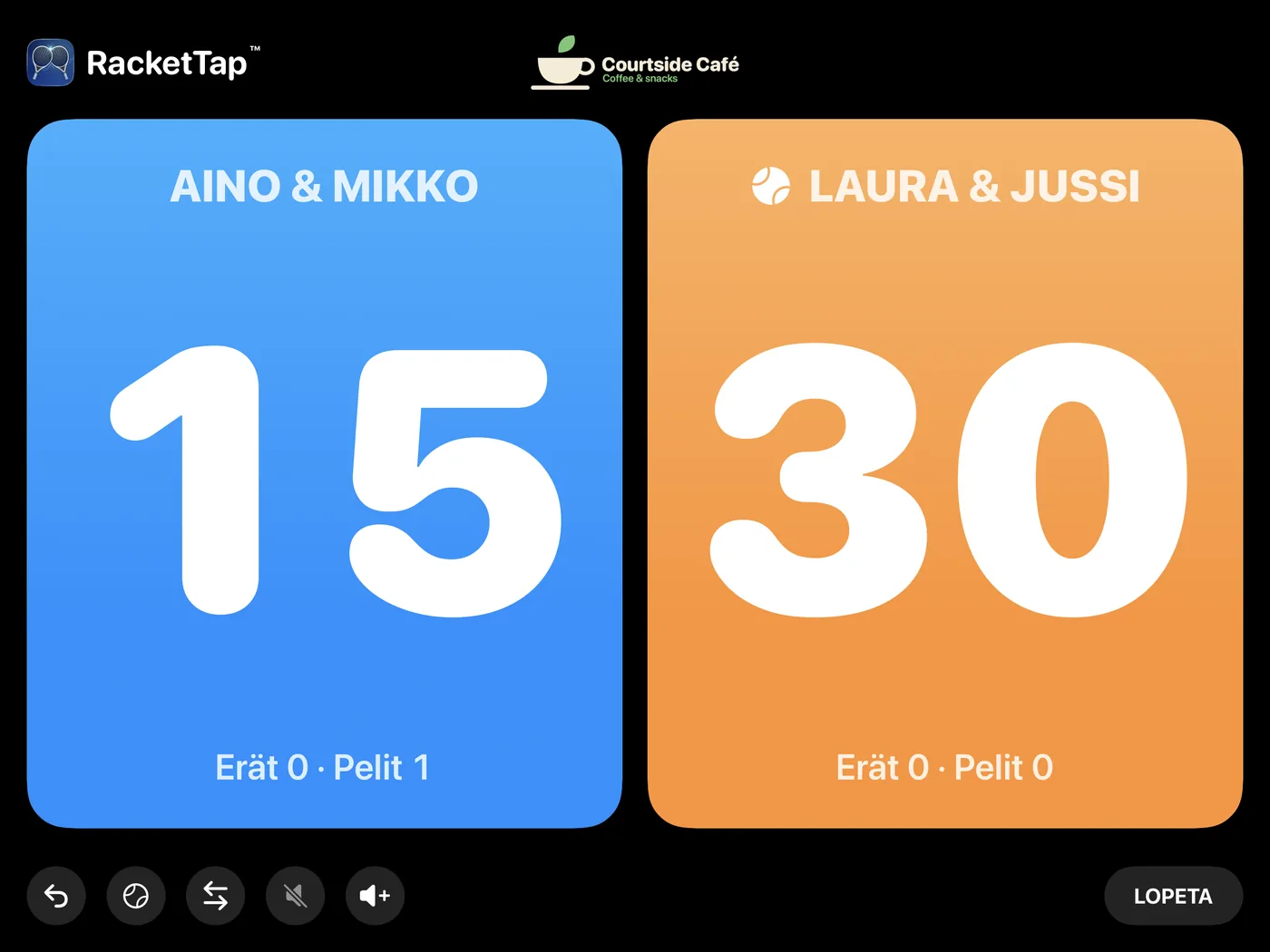
Kentän 1 iPad padel-ottelun aikana: sinisellä Aino ja Mikko, 15, oranssilla Laura ja Jussi, 30.

Mitä RacketTap Club tekee

Käyttöönotto

Käytössä muutamassa minuutissa

Ei asentajaa, ei kaapelointia, ei palvelinta. Jos osaat ottaa iPadin käyttöön, osaat ottaa käyttöön kentän.

  1. 1

    Laita iPad kentän laidalle

    Telineeseen tai seinäkiinnikkeeseen silmien korkeudelle, laturi kiinni.

  2. 2

    Asenna RacketTap Club

    Avaa lähettämämme asennuslinkki kentän iPadilla.

  3. 3

    Lähetä meille näytön koodi

    Sovellus näyttää iPadin laitekoodin. Napauta Kopioi ja lähetä koodi meille sähköpostilla.

  4. 4

    Liitä avauskoodi

    Vastaamme avauskoodilla. Liitä se sovellukseen ja napauta Tarkista.

  5. 5

    Nimeä kenttä ja valitse laji

    Valitse henkilökunnan PIN-koodi, kirjoita kentän nimi, valitse laji ja napauta Käynnistä klubitila.

  6. 6

    Anna painike pelaajille. Valmista!

    Yhdistä painike kerran iPadin kohdassa Asetukset → Bluetooth. Pelaajat hoitavat loput.

Jokaiselle iPadille oma avauskoodi. Seuraava kenttä otetaan käyttöön samoilla kuudella askeleella.

Tarkat vaiheet näyttö kerrallaan (henkilökunnalle)

Ensimmäinen käyttöönotto

  1. Avaa RacketTap Club. Napauta kohdan Laitekoodi vieressä Kopioi ja lähetä koodi meille sähköpostilla.
  2. Kun avauskoodimme saapuu, liitä se kenttään Liitä avauskoodi ja napauta Tarkista.
  3. Kirjoita kohtaan Ylläpitäjän PIN-koodi 4–6-numeroinen PIN-koodi kenttiin Uusi PIN-koodi ja Toista PIN-koodi ja napauta Tallenna PIN-koodi. Henkilökunta pääsee tällä koodilla kentän asetuksiin.
  4. Kirjoita Kentän nimi (esimerkiksi ”Kenttä 1”) ja valitse Laji. Avaa Ottelusäännöt, jos haluat toisenlaisen ottelumuodon.
  5. Napauta Käynnistä klubitila. Tästä lähtien iPad avautuu suoraan kenttänäkymään.

Takaisin asetuksiin

Paina kenttänäkymän vasenta yläkulmaa RacketTap-logon kohdalta kolmen sekunnin ajan ja anna PIN-koodi. Asetuksissa voit muuttaa kentän nimeä, kuulutusta, oletuslajia ja -ottelutyyppiä sekä sponsoreita, ja nähdä ottelulokin.

Bluetooth-painike

Yhdistä painike kerran iPadin kohdassa Asetukset → Bluetooth. Pidä iPadin äänenvoimakkuus pari pykälää maksimin alapuolella: useimmat painikkeet toimivat lähettämällä äänenvoimakkuuden painalluksen.

Ääni (valinnainen)

iPadin oma kaiutin kuuluttaa tuloksen. Isommassa hallissa voit yhdistää kaiuttimen samalla tavalla kohdassa Asetukset → Bluetooth. Kuulutus kytketään päälle tai pois kentän asetusten kohdasta Lue tilanne ääneen.

Kentällä

Mitä pelaajat näkevät

Näyttö, jonka lukee kentän toisestakin päästä.

Kentän aloitusnäyttö: kenttä 1, ottelun vaihtoehdot ja iso vihreä aloituspainike.
Aloitus yhdellä napautuksellaPelaajat valitsevat ottelun, Mixingin, Americanon tai tiebreakin, lisäävät halutessaan nimensä ja aloittavat napautuksella tai painikkeella.
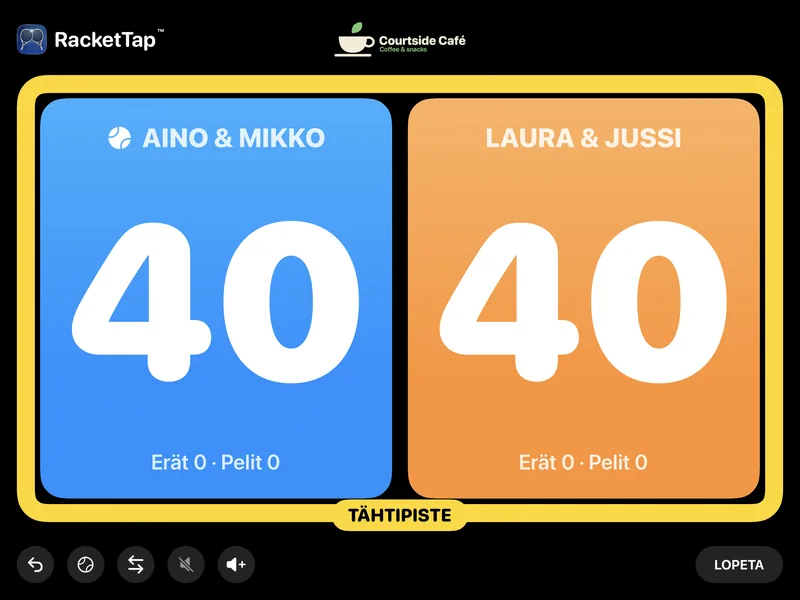
Tulostaulu tilanteessa 40–40, keltainen Tähtipiste-kehys korostettuna.
Säännöt hoituvatStar Point, tiebreakit, erät ja pelit pysyvät kirjassa isoin numeroin.
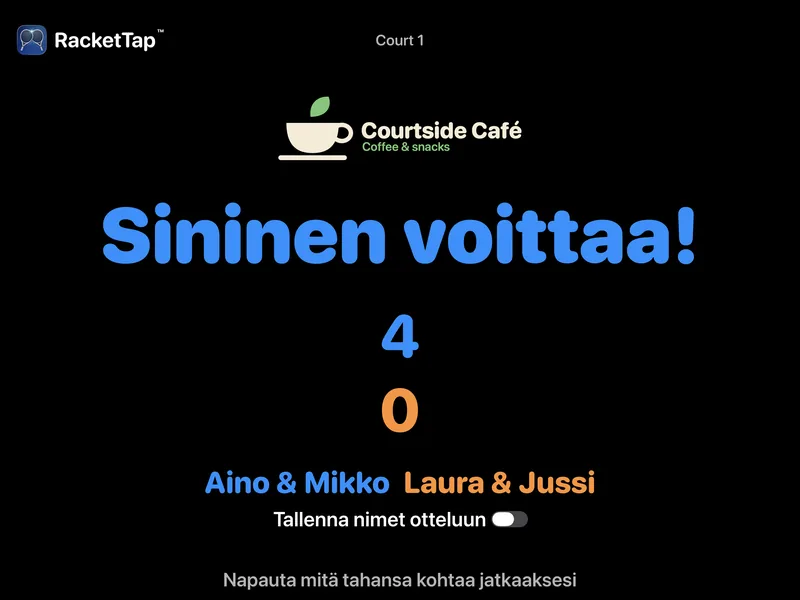
Tulosnäyttö: sininen voittaa 4–0, sponsorin logo yllä.
Selkeä lopputulosLopputulos pysyy näytöllä, kunnes seuraavat pelaajat napauttavat jatkaakseen.

Livenä puhelimessaPelaajat napauttavat Jaa verkossa, ja näytölle tulee QR-koodi. Kaverit skannaavat sen ja seuraavat ottelua selaimessa.

Live-tulossivu puhelimessa: molempien joukkueiden erät, pelit ja pisteet.
Seuraa mistä vainKatsojat eivät tarvitse sovellusta eivätkä kirjautumista.

Yksi painike, kolme liikettä

Aloitusnäytöllä yksi painallus aloittaa ottelun.

  • Piste siniselle
  • Piste oranssille
  • Pitkä painallus: kumoa
Seuroille

Näin seuranne saa RacketTap Clubin

Sopimus seuranne kanssa

RacketTap Club on saatavilla seuroille, joilla on sopimus Keret Software Oy:n kanssa. Ota yhteyttä: matan504@gmail.com.

Kerro, kuinka monelle kentälle haluatte tulostaulun, niin hoidamme loput.

Asennus

Asennuslinkki lähetetään seurallenne, kun sopimus alkaa.

Jokaiselle kentälle

  • iPadTelineessä tai seinäkiinnikkeessä, laturi kiinni.
  • Bluetooth-painikeYksi kenttää kohden. Kerromme, mitkä mallit toimivat.
  • Wi-FiVain puhelimien live-tulokseen. Pisteiden kirjaus toimii ilman.
  • Kaiutin (valinnainen)Meluisiin halleihin. iPadin oma kaiutin riittää usein.
Kysymyksiä

Hyvä tietää

Onko avauskoodi sidottu yhteen iPadiin?

On. Avauskoodi toimii vain siinä iPadissa, jonka laitekoodin lähetitte meille. Jokainen kentän iPad saa oman koodinsa.

Vaihdamme iPadin uuteen. Mitä teemme?

Asenna RacketTap Club uuteen iPadiin ja lähetä meille sen näyttämä laitekoodi. Saatte uudelle iPadille uuden avauskoodin; vanhan iPadin koodi ei siirry.

Mitä tapahtuu, kun lisenssi päättyy?

Päättymispäivän jälkeen (näkyy kentän asetuksissa kohdassa Voimassa asti) kenttä lopettaa pisteiden kirjaamisen ja palaa käyttöönottonäyttöön, joka kertoo syyn. Jo pelatut ottelut säilyvät iPadin ottelulokissa.

Unohdimme henkilökunnan PIN-koodin.

PIN-koodi on tallennettu iPadiin vain suojatussa muodossa, joten kukaan ei voi lukea sitä, emme mekään. Jos joku vielä muistaa koodin, kentän asetusten Vaihda PIN-koodi asettaa uuden. Viiden väärän yrityksen jälkeen PIN-näppäimistö lukittuu viideksi minuutiksi.

Asetusten Poista lisenssi tyhjentää myös PIN-koodin, mutta sekin vaatii PIN-koodin. Jos kukaan ei muista koodia, ota yhteyttä, niin autamme palauttamaan iPadin.

Tarvitaanko kentällä internetyhteys?

Pisteiden kirjaamiseen ei: tulostaulu, kuulutus ja otteluloki toimivat ilman yhteyttä. Puhelimien live-tulos vaatii, että iPad on Wi-Fi-verkossa ja kirjautuneena iCloudiin Apple-tilillä.

Mitä live-tulossivu näyttää?

Ottelun tilanteen ja kentällä kyseiselle ottelulle kirjoitetut joukkueiden tai pelaajien nimet. Ei mitään muuta: ei sykettä eikä sijaintia. Kuka tahansa linkin saanut voi katsoa sivua niin kauan kuin ottelu on jaettuna. Lisätietoja tietosuojaselosteessa.

Voivatko pelaajat vaihtaa ottelumuotoa?

Voivat. Aloitusnäytöllä he voivat valita ottelutyypin ja muokata ottelusääntöjä. Kun kenttä on ollut käyttämättä valitsemanne ajan (5–20 minuuttia), se palaa seuran oletukseen.

Mitä lajeja se tukee?

Padel, tennis, sulkapallo ja pickleball. Jokaisella kentällä on oma oletuslajinsa.

Kerääkö RacketTap Club henkilötietoja?

Ei. Keret Software Oy ei kerää henkilötietoja: ei käyttäjätilejä, ei analytiikkaa, ei mainoksia, ei seurantaa. Lue tietosuojaseloste.

Tulostaulu teidänkin kentille?

Kirjoita meille ja kerro seurastanne. Autamme ensimmäisen kentän käyntiin.

matan504@gmail.com

RacketTap Clubin tekee Keret Software Oy.